
Import Export
LilSEO Documention
A detailed guide with step-by-step instructions on how to use our Local SEO Plugin.
Simple, straight-forward and to the point.
LilSEO Plugin: Import / Export Options
Our Local SEO Plugin allows you to almost instantly create tens-of-thousands of Areas and Landing Pages.
In fact, we’ve designed our plugin to be as simple to use whether you have a few hours experience or years of experience with WordPress.
Import: Stage 1
To get started, take a look at our example CSV here: Sample LilSEO CSV
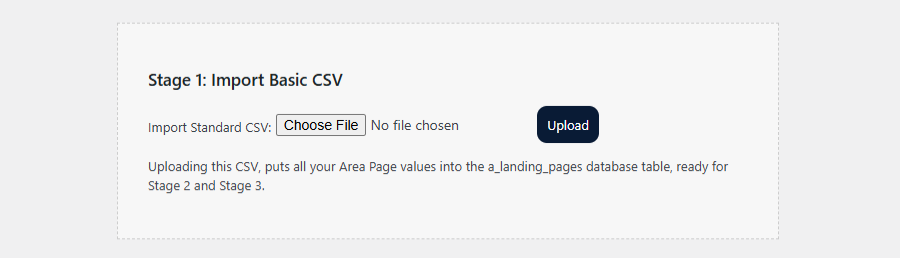
Just ensure you have a complete list of all the Areas you would like to generate, assign the correct values to each row then upload the CSV into the Stage 1 box.
Import: Stage 2
All Stage 2 requires is that you have your Landing Pages ready to go.
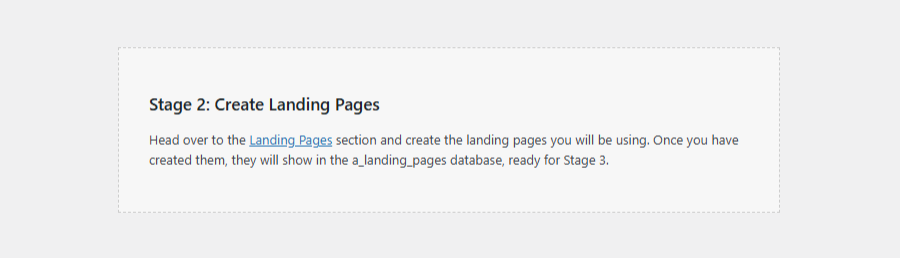
Simply head over to the Landing Pages section, create the Landing Pages then head back over to the Import Options section.
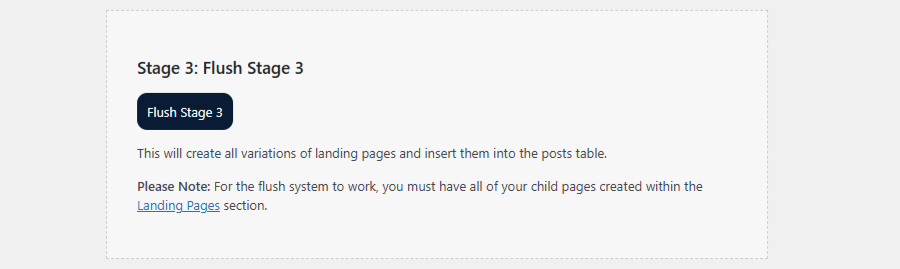
Import: Stage 3
Stage 3 flushes the content from within the database which then creates the pages. Always ensure you have at least one Landing Page set up before flushing the content.
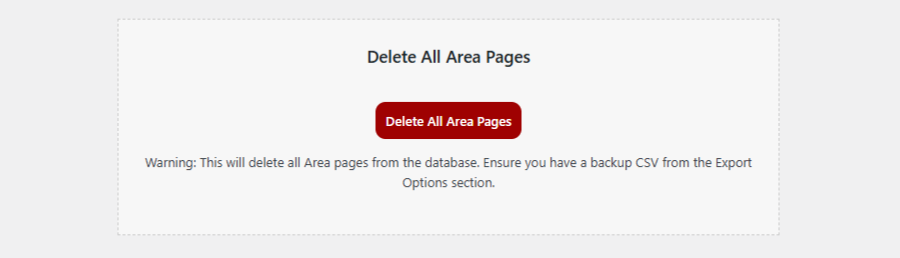
If something isn’t right and you need to start over, simply head to the Create Areas section in the back end and press the big red button that says “Delete All Area Pages” then start the process again.
Exporting CSV Data
Exporting data with the LilSEO plugin is as simple as it looks!
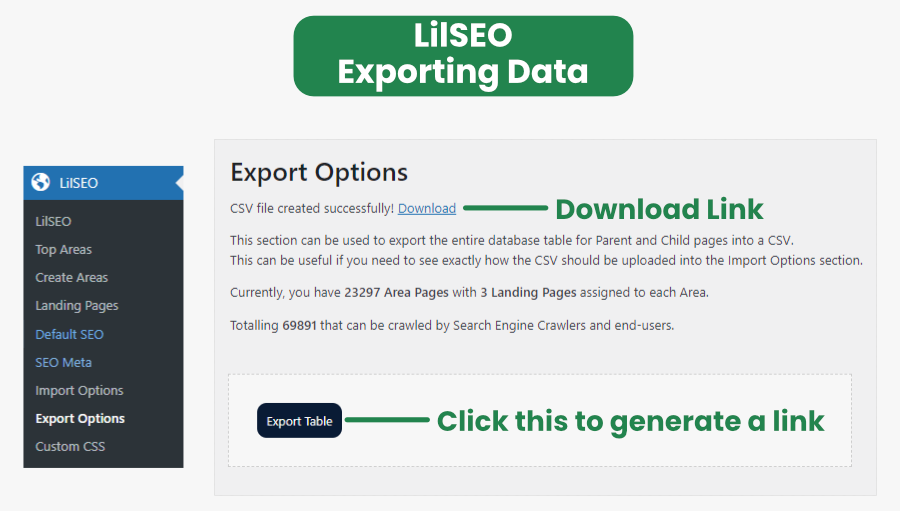
As long as you have data in the table such as Area Pages and Landing Pages, simply click the Export Table button to generate a downloadable CSV file.
This same file can then be altered and uploaded however, if you want to overwrite existing data – It’s best to delete the Landing Pages and Area pages that already exist in the table.
You can do this by going to Area Pages and Landing Pages sections and deleting them.